Navigation · Outdoor Skills
Handheld GPS Waypoints: Mark, Navigate, and Organize
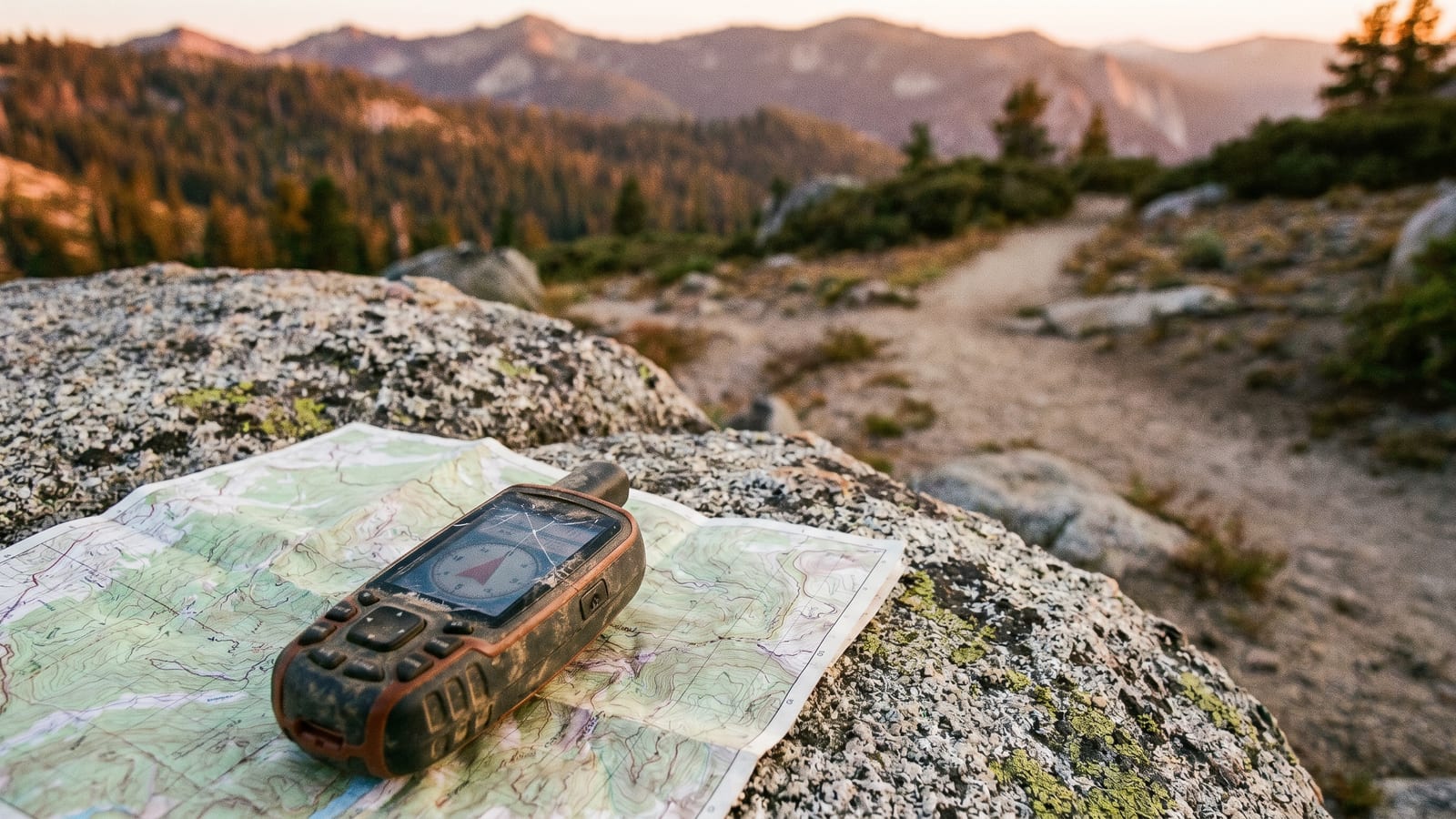
Your handheld GPS is only as useful as the data you put into it. Out of the box, it can tell you where you are. Once you start using waypoints, it can also tell you where you were, where your truck is, where the water source is three ridges over, and how far you are from any of those places right now. That’s the jump from raw coordinates to a functional navigation system. This guide covers everything: what waypoints are, how to save and navigate to them, how to name and organize them, how to enter them before you leave home, and what not to expect from them in the field.
What Is a GPS Waypoint?
A waypoint is a saved location. At its core, it’s just a pair of coordinates, latitude and longitude, stored under a name you choose. When you mark a waypoint, your GPS records your exact position and saves it as a named point you can return to later.
The reason this matters is that GPS units don’t inherently remember anything. Without waypoints, you’re stuck reading your current position in real time. With waypoints, you’ve built a personal map of locations that matter to you: your trailhead, the spring you found, the ridge saddle where you glassed that bull last fall. Those locations persist across trips until you delete them. That’s what turns your GPS into a useful tool rather than a fancy compass.
How to Mark a Waypoint in the Field
On most Garmin handhelds, the workflow is the same: press the MARK button, name it, pick an icon, and save. Here’s what that looks like in practice.
Press MARK. On Garmin eTrex and GPSMAP devices, there’s a dedicated MARK key. The unit immediately captures your current coordinates. Don’t move while doing this, even a few feet of drift adds noise to your recorded position.
Name it before you save it. The default is a sequential number, like 001 or 002. Never leave it that way. A list of 47 unnamed waypoints is useless six months later. Spend the 30 seconds to type a short, descriptive name. CAMP-01, TRHD-NORTH, WATER-DRY, STAND-A. You’ll know exactly what each one is without opening it.
Pick an icon. Garmin devices offer dozens of symbols, tents, water drops, truck icons, flags, deer tracks. Use them. Visual categories let you scan your waypoint list and immediately know what you’re looking at. I use the tent icon for all camps, the water drop for water sources, a flag for parking and trailheads, and a deer track for hunting locations.
Save. On most Garmin devices, this is the OK button or the ENTER key. The waypoint is now stored on your unit.
The GPSMAP 66 series has a slightly different layout than the eTrex 32x, but the core sequence is the same. If your button is labeled differently, look for MARK in your unit’s menu. What you’re looking for is the function that creates a waypoint at your current location.
How to Navigate to a Saved Waypoint
Once you have waypoints saved, navigating back to them is straightforward. The sequence on Garmin devices is: Find menu, then Waypoints, then select the one you want, then GOTO or Navigate.
Once you’re navigating, your GPS gives you two things: a bearing arrow pointing toward the waypoint, and a straight-line distance to it. Follow the arrow. That part is obvious.
What’s not obvious is what the arrow doesn’t know. Your GPS draws a straight line from your position to the waypoint. It doesn’t know there’s a canyon between you and it, a river with no bridge, a cliff band, or a swamp. Straight-line distance is useful for knowing roughly how far you are from something. It’s not a route. Always pair your GPS navigation with a topo map so you know what the terrain actually looks like between you and your destination.
This is especially important in mountain country. A two-mile straight-line route with 1,800 feet of elevation gain and a creek crossing in the middle is a four-hour trip, not a ninety-minute one.
Naming and Organizing Your Waypoints
Most people name waypoints badly or not at all. Here’s a system that holds up across hundreds of waypoints and multiple years: keep names short, make them descriptive, use consistent prefixes, and clear old data before new trips.
Short and descriptive. GPS screens are small and character limits are real. Eight characters or fewer is the target. CAMP-01 beats CAMPSITE NEAR BEAVER POND every time.
Use consistent prefixes. Group your waypoints by type. CAMP- for camp locations, TRHD- for trailheads, WATER- for water sources, TRK- for truck or vehicle, STAND- for hunting stands, HIT- for animal sign. When you open your waypoint list and sort alphabetically, all your camps are together, all your stands are together.
Icons match prefixes. If every CAMP- waypoint uses the tent icon and every TRK- waypoint uses the vehicle icon, you’ve got two layers of categorization. The label confirms what the icon telegraphs.
Clear before new trips. Before you head out, delete waypoints from old trips that you don’t need. A cluttered waypoint list creates friction when you need to find something fast. If you want to save old waypoints permanently, export them to BaseCamp or Garmin Explore first, then delete from the device.
Manually Entering a Waypoint
You don’t have to physically be at a location to mark it. You can enter coordinates directly, which is useful for trip planning, hunting prep, and geocaching.
The general workflow on Garmin devices: go to Find, then Waypoints, then Create New (or New Waypoint). You’ll get an edit screen where you can type in coordinates manually. Enter your lat and long in whatever format your unit defaults to, usually degrees and decimal minutes (DD MM.MMM) or decimal degrees (DD.DDDDD). Name it, save it.
Where do those coordinates come from? A friend can text you a location. Topo mapping software like CalTopo or OnX Hunt lets you click a point on a map and grab coordinates. A geocaching listing gives you coordinates directly. A USGS topo shows lat/long grid lines you can read off manually.
One important note: match your coordinate format. If your GPS is set to degrees and decimal minutes and your source is giving you decimal degrees, convert first. A wrong format gives you a waypoint in the middle of the ocean.
Common Waypoint Use Cases
Backpacking. Mark your trailhead the moment you leave your vehicle. TRHD-01, truck icon, done. After that: every reliable water source you find (WATER-01, water drop icon), each campsite (CAMP-01, tent icon), and any bail-out points or trail junctions that might matter if weather turns or someone gets hurt. You don’t need to mark every step. Mark the things you might need to find in the dark or in bad weather.
Hunting. This is where waypoint discipline pays off year after year. Mark every stand location (STAND-A, STAND-B), every trail cam spot (CAM-01), your vehicle each time you park in a new spot (TRK-01), and any animal sign worth tracking (RUB-01, SCRAPE-01, HIT-01 for blood trail starts). After a few seasons of consistent naming, you’ve got a scouting database that no app can replicate, because you built it yourself from ground truth.
Emergency. Before you go anywhere remote, mark your vehicle and the nearest paved road intersection. If someone in your group gets injured, those two waypoints tell rescue personnel exactly where you started and where they can reach you by vehicle. TRK-01 for the truck. RD-JCT for the road. Takes ten seconds and costs nothing.
Transferring and Sharing Waypoints
Garmin’s BaseCamp software (free, Windows and Mac) lets you manage all your waypoints on a computer. Connect your GPS via USB, import your waypoints, organize them into collections by trip or location, and export them as GPX files. GPX is the standard format and it works across Garmin devices, Gaia GPS, CalTopo, OnX, and most other platforms.
The Garmin Explore app does the same thing from your phone. Sync over Bluetooth, view and edit waypoints in Explore, share with other Garmin Explore users directly.
For sharing coordinates with someone who doesn’t have a compatible device, use decimal degrees. Format: 46.87234, -113.98721. That format works in Google Maps, Apple Maps, most navigation apps, and any GPS unit with a manual coordinate entry function. Text it to your hunting partner before the trip, they can enter it on their end.
Waypoint Limits and What to Watch For
Garmin handhelds store between 1,000 and 10,000 waypoints depending on the model. The eTrex series is on the lower end. The GPSMAP 66i and 67 series can hold up to 10,000. If you’re a light user who marks a dozen waypoints per trip, you’ll never hit the limit. If you’re geocaching your way across the country or running a trail camera network with 200 cameras, pay attention.
The other limit to understand is navigation accuracy. Your GPS positions you within about 3-5 meters under a clear sky. That’s precise enough for almost everything outdoors. The bigger gap is what straight-line navigation doesn’t account for: elevation change, obstacles, and impassable terrain. Your unit will show you the shortest distance. It won’t tell you that distance goes through a cliff. That’s what the map is for.
Use your GPS to know where you are and where your waypoints are. Use your map to figure out how to get there. Together, they’re a reliable system. Either one alone has blind spots.